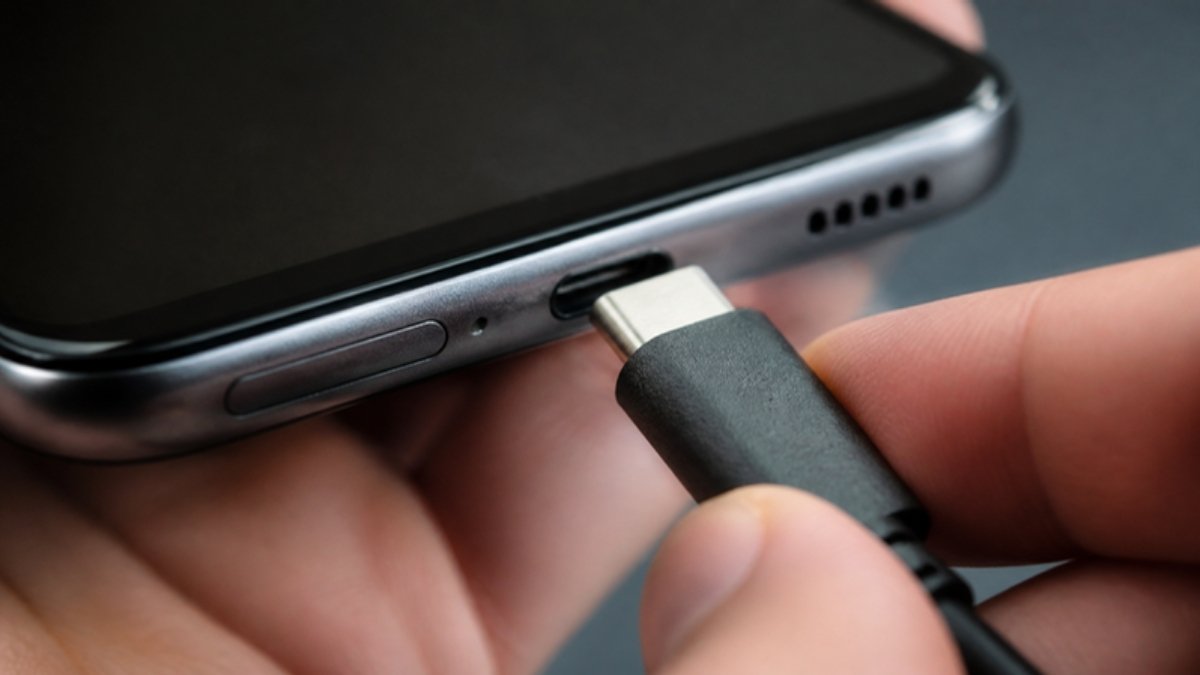
Samsung phones have several smart charging features that can confuse people into thinking the phone is broken. Before you go to a repair shop, follow these steps in order.
Step 1: Check the cable and adapter
Try a Samsung or good-quality USB-C cable and a different adapter. Many newer Samsung phones do not come with an adapter in the box, so people use whatever is available, often a weak one.
Step 2: Look for a moisture warning
If you see a water drop icon or “Moisture detected”, the phone blocks wired charging to protect itself. Unplug, dry the port and wait. Wireless charging, if your model has it, still works.
Step 3: Clean the USB-C port
Turn the phone off and gently remove lint with a wooden toothpick. A loose cable that falls out easily is a strong hint of packed dirt.
Step 4: Check battery protection settings
Go to Settings > Battery > Battery protection (or More battery settings > Protect battery). If it is set to stop at 80% or 85%, your phone is working as designed. Turn it off if you need a full charge.
Step 5: Check fast charging is on
In Settings > Battery > Charging settings, make sure Fast charging is enabled if charging feels slow.
Step 6: Restart and try Safe mode
Restart the phone. If it still will not charge, boot into Safe mode (hold Power, then press and hold Power off until Safe mode appears). If it charges in Safe mode, a downloaded app is the problem.
Step 7: Run Samsung diagnostics
Open Samsung Members > Support > Phone diagnostics and test the battery, cable charging and USB connection.
Step 8: Update the software
Install any update in Settings > Software update.
Still not charging?
The charging port, sub-board or battery may need replacing. On most A-series phones this is an affordable repair. Read service centre vs independent shop to decide where to go, and the general guide on why phones stop charging.
New Samsung phones at Simcel
- Samsung Galaxy A07 (4GB RAM + 128GB): 25W fast charging and up to 6 years of Android upgrades.
- Samsung Galaxy A17 5G: 25W charging, Super AMOLED and 5G.
- Samsung Galaxy S26 Ultra (256GB): 60W super fast charging.


Leave a Reply