
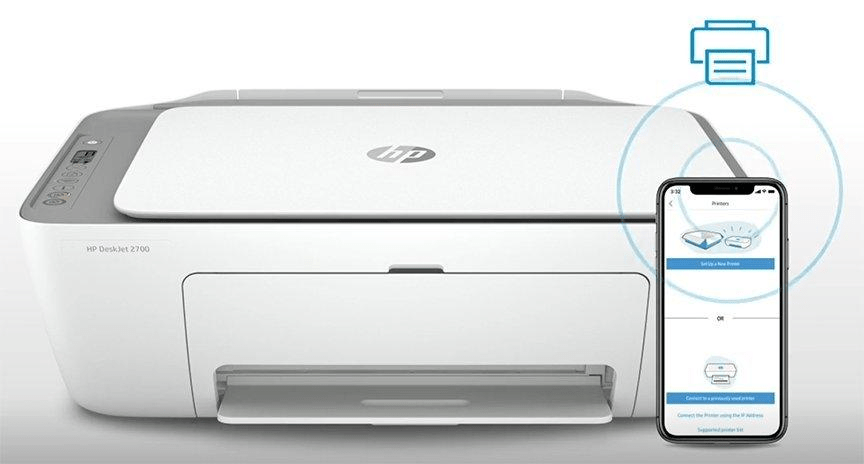
In today’s fast-paced world, the ability to print wirelessly from mobile devices has become increasingly important. The HP Deskjet 2720 All-in-One printer offers the convenience of wireless printing, allowing you to print directly from your smartphone or tablet. In this blog post, we’ll explore the wireless printing capabilities of the HP Deskjet 2720.
Wireless Printing Setup:
To enable wireless printing from your mobile device to the HP Deskjet 2720, follow these steps:
Ensure your printer is connected to the same WiFi network as your mobile device.
Download and install the HP Smart app on your smartphone or tablet from the app store.
Open the HP Smart app and follow the on-screen instructions to set up the printer.
Once the setup is complete, the app will automatically detect your printer on the network.
Select the document or photo you wish to print from your mobile device and choose the HP Deskjet 2720 as the printer.
Adjust any print settings, such as paper size or quality, within the app.
Tap the Print button, and the HP Deskjet 2720 will wirelessly receive the print job and begin printing.
Benefits of Wireless Printing:
Wireless printing offers several advantages, including:
Convenience: You can print directly from your mobile device without the need for a computer or cables.
Flexibility: Print from anywhere within the range of your WiFi network, providing greater mobility.
Time-saving: Wireless printing eliminates the need to transfer files or documents to a computer before printing.
Accessibility: Easily print emails, web pages, photos, and documents stored on your mobile device.
Conclusion:
The HP Deskjet 2720 supports wireless printing from mobile devices, providing you with the convenience and flexibility to print on the go. With its wireless capabilities and the HP Smart app, you can effortlessly print photos, documents, and more directly from your smartphone or tablet.
GET IT >>>HERE


 SIMCEL ONLINE
Leave a reply to Akwasi Oppong-Asamoah Cancel reply