
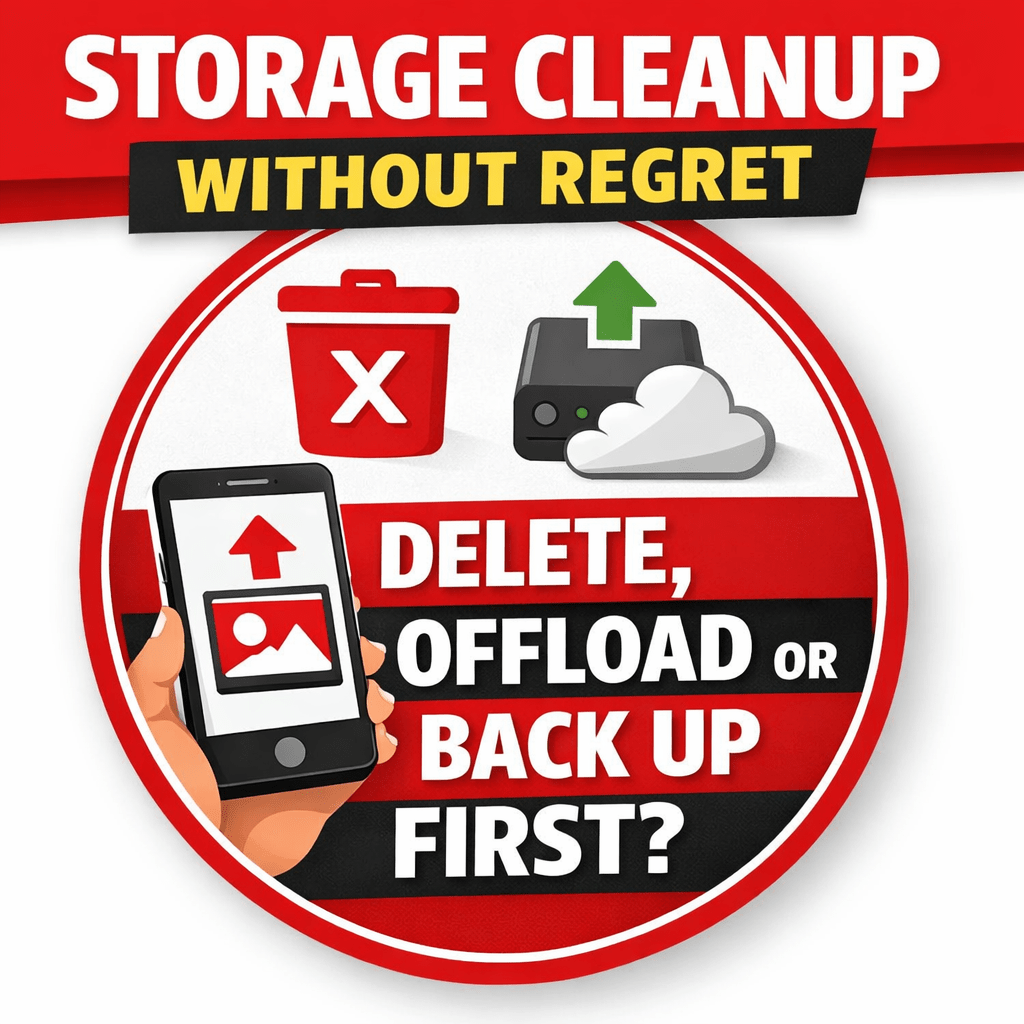
Your phone says, “Storage Almost Full.”
Apps stop updating. The camera refuses to take photos. WhatsApp won’t download media.
Before you start randomly deleting things (and later regret losing important files), slow down. Clean smart — not emotional.
Storage discipline isn’t optional. It’s productivity.
Let’s break this down step-by-step.
Step 1: Back Up What Truly Matters (Before You Delete Anything)
Before touching that delete button, protect what you cannot replace.
1. Photos & Videos
These usually take the most space — especially if you shoot product photos for your business or record marketing videos.
Back up to:
- Google Photos
- Google Drive
- iCloud
- External hard drive
Once confirmed uploaded, then delete from the device.
Rule: If it’s irreplaceable (family photos, business documents, client contracts) → BACK UP FIRST.
2. WhatsApp Media
WhatsApp stores quietly:
- Every forwarded video
- Every “Good morning” image
- Every PDF you’ve ever opened
Go to:
WhatsApp → Settings → Storage and Data → Manage Storage
Delete:
- Large forwarded videos
- Duplicate memes
- Old status downloads
Back up chats first if needed.
Step 2: Delete These Without Regret
Be bold here.
✔ Old Screenshots
Most are temporary — payment confirmations, social media posts, random inspiration.
If you’ve already used them, delete them.
✔ Download Folder Junk
PDFs you never read.
Images you forgot about.
Duplicate documents.
Open your Downloads folder and clear aggressively.
✔ Unused Apps
If you haven’t opened an app in 3–6 months, it’s taking space and mental energy.
Delete:
- Old games
- Editing apps you no longer use
- Duplicate banking apps
- Test apps
You can always reinstall later.
Step 3: Offload (Instead of Deleting Completely)
Some things you don’t want gone — just not on your phone.
1. Large Video Files
If you create marketing videos for Simcel Online or product demos:
- Move them to a laptop
- Store on external drive
- Upload to cloud storage
Keep only what you actively need.
2. Business Documents
Invoices, supplier lists, contracts — don’t keep them only on your phone.
Move them to:
- Google Drive folders
- Organized cloud system
- Laptop archive
Your phone should not be your only office.
Step 4: Check Hidden Space Killers
🔍 App Cache
Apps like Instagram, Facebook, and TikTok store heavy cache.
On Android:
Settings → Storage → Apps → Clear Cache
This can free several GB instantly.
🔍 Offline Downloads
Check:
- Netflix offline movies
- Spotify downloaded songs
- YouTube offline videos
Delete what you’re not actively watching.
Smart Cleanup Strategy (So You Don’t Repeat This)
Here’s the discipline most people lack:
- Enable automatic cloud backup
- Set a monthly cleanup reminder
- Disable WhatsApp auto-download for videos
- Avoid saving every meme
- Keep at least 20% storage free always
Storage space = performance.
When your phone is clean:
- Apps open faster
- The battery performs better
- Updates install smoothly
- Business operations don’t freeze
Truth
A slow phone is often not “old.”
It’s overloaded.
Clean intentionally.
Back up first.
Delete boldly.
Offload strategically.
And if your phone still struggles after proper cleanup, then maybe it’s time to upgrade — and that’s where Simcel Ventures comes in.
Need help choosing a faster device?
We’ve got you covered.


 SIMCEL ONLINE
Leave a Reply