
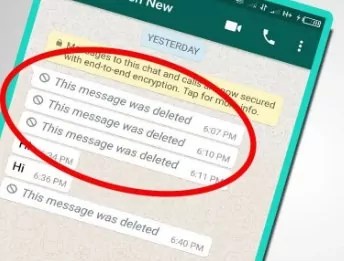
WhatsApp has become an essential part of our daily communication, allowing us to stay connected with friends, family, and colleagues. However, it can be frustrating when important messages are accidentally deleted. The good news is that there are methods to recover deleted messages on WhatsApp, and in this blog post, we’ll explore some of the most effective techniques. Let’s dive in!
Method 1: Recovering from Recent Backups: WhatsApp automatically creates backups of your chats and media files, which can be used to restore deleted messages. Here’s how you can do it:
- Uninstall WhatsApp from your device.
- Reinstall WhatsApp from your respective app store.
- During the installation process, WhatsApp will prompt you to restore your chat history. Click on the “Restore” option.
- Wait for the restoration process to complete. This might take a few minutes, depending on the size of the backup and your internet connection.
- Once the restore is finished, your deleted messages should reappear in the respective chats.
It’s important to note that this method will only work if you have recently backed up your WhatsApp data. By default, WhatsApp creates daily backups, but you can also set up more frequent backups in the settings.
Method 2: Using Local Backup Files: WhatsApp also creates local backup files on your device, which can be utilized to recover deleted messages. Here’s how you can do it:
- Navigate to the WhatsApp database folder on your device. The location may vary depending on your device and file manager application. Typically, it can be found in the internal storage > WhatsApp > Databases folder.
- Rename the backup file you want to restore from “msgstore.db.crypt12” to “msgstore.db.crypt12.current.” This step is crucial to ensure that the backup file is recognized by WhatsApp.
- Uninstall WhatsApp from your device.
- Reinstall WhatsApp and follow the setup process.
- During the installation, WhatsApp will detect the local backup and ask if you want to restore it. Choose the “Restore” option.
- Once the restore is complete, your deleted messages should appear in the respective chats.
Please note that this method only works if you have not created a new backup file since deleting the messages you want to recover. Additionally, it’s advisable to create a copy of the original backup file before making any changes to it.
Method 3: Contacting WhatsApp Support: If the above methods fail to retrieve your deleted messages, you can reach out to WhatsApp Support for assistance. Although they don’t guarantee message recovery, they may be able to help in certain cases, such as if the messages were recently deleted or if there was an issue with the backup process. Visit the WhatsApp support website or contact their support team for guidance.
Conclusion:
Accidentally deleting important WhatsApp messages can be distressing, but with the right techniques, you can increase your chances of recovering them. Start by checking if you have recent backups and follow the instructions to restore them. If that doesn’t work, explore the local backup files on your device. Finally, if all else fails, consider reaching out to WhatsApp Support for further assistance.
Remember to regularly back up your WhatsApp data to ensure a higher probability of successful message recovery in the future. Prevention is always better than cure!


 SIMCEL ONLINE
Leave a Reply